

Digital Declutter Checklist
You are busy. You want a calmer home and a calmer digital life.
This short plan meets you where you are. It uses gentle steps and tiny time blocks. You can journal for 10–15 minutes to spot your biggest stress point. Then follow a simple three-step approach: identify the problem, build a clear system, and keep short routines.
Try a search-first method. Use clear names and fewer folders. Turn off most iPhone notifications. Archive emails after reply. Use a password manager like 1Password and keep regular backups to OneDrive before deleting.
Start with one space at a time. Spend a few minutes each day. Do a light weekly tidy and a short monthly check. These small wins save time and free mental space.
Key Takeaways
- Start small. Work in short minutes each day.
- Use a search-first system and clear names for files.
- Protect your energy: fewer notifications and fewer open tabs.
- Back up before big deletes and use secure tools for logins.
- Keep routines simple: daily resets, a light weekly tidy, monthly checks.
A calm start to your digital decluttering
Start by naming one source of friction and aim for a tiny win.
Spend 10–15 minutes today to journal this question: “What area of clutter steals my calm?”
Common answers: an overflowing inbox. Duplicate photos. A desktop covered in documents. Pick just one spot. Pick one easy action.

“Set a soft intention. One small step can change how your day feels.”
- Write a short intention. You want more ease and less noise.
- Try one tiny step: unsubscribe from five senders. Or delete ten duplicates. Or move three stray files.
- Ask how you naturally find things. By date. By tag. By the search bar. Build a system that matches your brain.
- Archive older items and rely on search in OneDrive or Lightroom.
Keep scope small. One day. One spot. One step. Protect your energy. If you feel like stopping, stop. Come back tomorrow. Light progress brings real control over devices and your life.
Digital Declutter Checklist
Pick one device and give it a tidy that takes less than fifteen minutes.
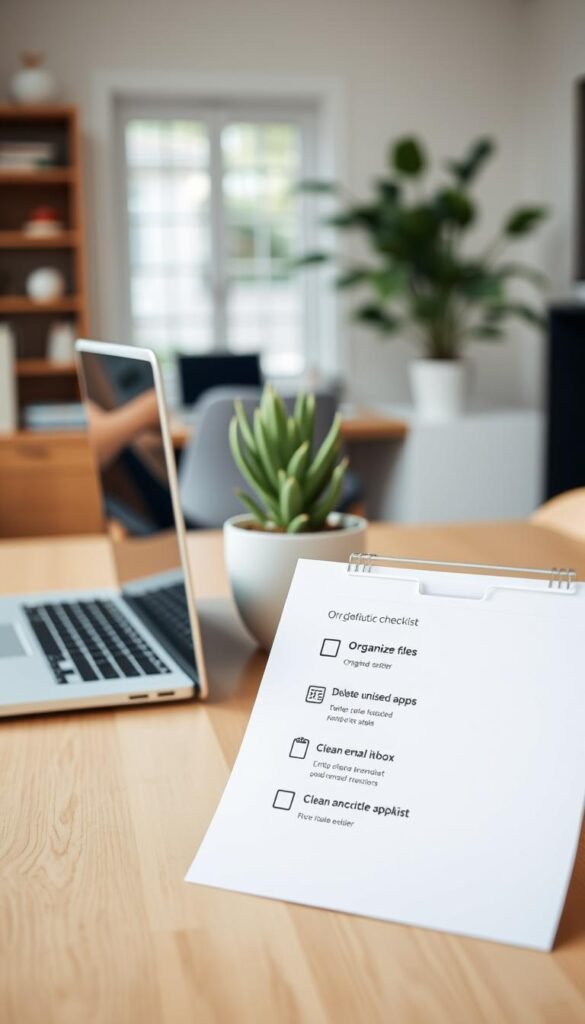
Phone and home screen: edit, contain, maintain
Delete unused apps. Move the rest into one simple Apps folder on an interior screen. Turn off most notifications to protect your attention.
Keep only daily essentials on the first screen. Use swipe-down search to open what you need fast. Schedule 15 minutes monthly to repeat this small pass.
Email and inbox control: unsubscribe, archive, simple filters
Unsubscribe from five senders. Archive after you reply. Let search find old messages instead of deep folders.
Create one “Action” folder and one “Waiting” folder if that helps. Empty Trash weekly and keep a few reply templates to save minutes.
Desktop, files, and browser: downloads, tabs, caches, updates
Empty Trash and clear caches. Delete items from Downloads. Close tabs at the end of the day.
Name files with clear dates and keywords. Back up to the cloud and an external drive. Install updates and consider a fan cleaning if your computer runs hot.
Photos and cloud storage: delete duplicates, tag, back up
Remove blurry and duplicate photos. Keep the best. Sort by date or simple events and add light tags if you like.
Back up to two places. Do a tiny photo review each week to prevent storage buildup and reduce visual clutter.
Social media and notifications: reset, unfollow, set boundaries
Unfollow accounts that drain you. Reset recommendations with “Not Interested” tools. Move social apps off the first screen and silence nonessential badges.
Set a soft daily limit. Short breaks help reset attention and protect your calm space.
Passwords, security, and backups: manager, 2FA, external drives
Close unused accounts and update weak passwords. Use a password manager like 1Password and enable 2FA on key logins.
Back up weekly to cloud and monthly to an external drive. Test a restore once a quarter to keep the system reliable and your peace intact.
Daily, weekly, and monthly routines that keep you clear
Small, regular habits keep your devices calm without taking over your day.
Daily resets in minutes
Spend a few minutes at the end of the day. Close open tabs in your browser. Clear your desktop. Delete ten stray files or emails. One gentle pass. Then stop.
Weekly tidy with focused themes
Pick one theme each week. Week one: inbox and emails. Week two: photos. Week three: downloads. Week four: apps. Unsubscribe from five senders. Empty Trash and update one app.
Monthly maintenance and storage check
Once a month, clear caches and install updates. Check storage and free space. Back up to the cloud and an external drive. Verify the backup completed.
“Short, kind routines make upkeep feel light and steady.”
| Cadence | Time | Key actions | Tools |
|---|---|---|---|
| Daily | 10–15 minutes | Close tabs. Clear desktop. One-email pass. | Browser, mail app |
| Weekly | 30–45 minutes | Theme tidy. Unsubscribe. Empty Trash. | Search, file manager |
| Monthly | 30–60 minutes | Clear cache. Install updates. Back up. | Backup tools, external drive |
Room-by-room examples for a lighter digital home
Use home-style habits to make your online spaces calmer and easier to use.

Kitchen: recipes, grocery apps, and shared lists
Keep one grocery app and one recipes app. Pin a shared family list for quick use.
Clear old recipe screenshots at the end of the day. This saves space and mental clutter.
Pantry: cloud folders as labeled bins
Treat cloud folders like shelves. Use broad categories: Meals, Family, Receipts.
Create one folder per theme. Name files with dates so you can find things fast with search.
Bathroom: self-care apps and quiet notifications
Keep one self-care app you love. Silence its notifications and set a gentle reminder window.
Bedroom: bedtime mode and gentle screens
Use Bedtime or Do Not Disturb every night. Dim the screen and keep phones off the nightstand if that helps sleep.
Closet: archive and seasonal folders
Archive out-of-season files. Make seasonal folders like Taxes 2024 and Holidays.
Use clean names so your files are easy to pull when you need them.
Entryway: home screen essentials and quick access
Place only essentials on your home screen: Notes, Calendar, Maps, Messages.
Mute busy group chats. Clear stale threads. One swipe finds the rest.
“Give each digital space one job. Fewer choices bring more calm.”
- Keep one app per purpose when you can.
- If something supports your work or life, leave it visible. Otherwise tuck it away in a folder.
- Do a five-minute reset at the end of the day to keep the digital space feeling open.
Simple systems that make decluttering easier
Create a calm way to keep your files organized with a few soft rules.
Search-first organization. Rely on OneDrive or Lightroom search to find things fast. Archive older items and let the search bar do the heavy lifting. Name files using YYYY-MM-DD plus a few keywords. Your future self will thank you.
Practical steps for files and folders
- Pick three top-level folders like Work, Personal, Family. Keep nesting shallow.
- Park active items on a single Working folder. Keep the desktop near empty.
- Add simple tags or keywords when it helps search without creating more structure.
Soft rules for apps, emails, and updates
One app per job. Reply and archive emails. Install updates when prompted. These gentle habits prevent clutter and keep you in control.
Backups and browser hygiene. Back up to cloud storage and an external hard drive. Test restores occasionally. Keep a short bookmarks bar and clear caches on a schedule.
“One small step a day keeps your digital space steady.”
Conclusion
A short, kind habit is all you need to keep your online life calm.
One small step each day saves time and quiets mental clutter. Pick one action today. Unsubscribe from a few senders. Delete ten photos. Move three files into a clear folder.
Keep your phone tidy. Limit apps on the first screen. Quiet nonessential badges. Let a short “digital sabbath” reset your focus on the weekend.
Protect what matters with easy routines. Back up to cloud storage and an external hard drive. Use a password manager and 2FA. Test a restore now and then for peace of mind.
You have a simple way forward. Repeat these small steps and your digital space will feel lighter. You are in control. Start today with one small, gentle step.
FAQ
How do I begin without feeling overwhelmed?
Start small. Pick one area that causes the most stress. Give yourself 10–15 minutes. Set a gentle intention. Remove or archive the easiest items first. You’ll build calm and momentum.
What’s the quickest way to clear my phone home screen?
Edit ruthlessly. Keep only daily-use apps on the main screen. Group others in labeled folders. Move social and shopping apps to a secondary page. Use a single clock, weather, and a wellness app for peace.
How do I manage an overflowing email inbox?
Unsubscribe from newsletters you don’t read. Create simple filters for bills, family, and work. Archive older messages in bulk. Aim for a triage habit: read, reply, archive.
What should I do with thousands of photos?
Delete obvious duplicates and blurry shots first. Then use a quick pass to flag favorites. Tag or add minimal albums by event or season. Back up the final set to a trusted cloud or external drive.
How often should I run cleanups?
Do tiny daily resets for 5–10 minutes. Tackle focused weekly tasks for 20–30 minutes. Schedule a deeper monthly review to check storage, permissions, and backups.
Are there tools that make this easier?
Yes. Use photo managers, password managers like 1Password or LastPass, and cloud services such as Google Drive or iCloud. Browser extensions can block junk. Pick simple tools that fit your life.
How do I keep social media from taking over?
Unfollow or mute accounts that drain you. Turn off nonessential notifications. Set time limits in screen time settings. Curate feeds with intention so scrolling feels lighter.
What’s the safest way to back up important files?
Use two methods. One cloud backup and one physical copy on an external drive. Make sure backups are encrypted. Test the restore process occasionally so you know it works.
How can I organize files so they’re easy to find?
Use clear, consistent file names and short folder paths. Start with broad categories like Home, Work, Family. Search-first habits help more than perfect nesting. Keep downloads folder tidy.
What are gentle rules for apps and subscriptions?
Keep apps you use weekly. Remove apps not opened in 60–90 days. Review subscriptions quarterly. If something no longer serves you, cancel and move on.
How do I involve my family without nagging?
Share simple systems. Pick one shared folder or shopping list app. Schedule one short family tech reset each month. Lead with calm and small wins. Praise progress.
How much time will this actually take?
Short sessions add up. Expect quick wins in 10–30 minutes. Deeper projects may take an hour or two. The goal is steady progress, not perfection.
Can I keep privacy while using cloud services?
Yes. Use strong passwords and two-factor authentication. Choose reputable providers like Google, Apple, or Dropbox. Limit sharing permissions and review them regularly.
What if I feel anxious about deleting things?
Pause and back up first. Move items to an “Archive” folder for 30 days. If you don’t need them after that, delete. This soft approach reduces worry and builds trust with the process.